Remote support via AnyViewer |
|
For remote support, we use AnyViewer — reliable and easy-to-use remote desktop software. It allows us to connect to your computer and solve problems remotely. AnyViewer supports remote support through a Device ID and a security code, or through a remote control request. To start a remote support session, please follow the steps below.
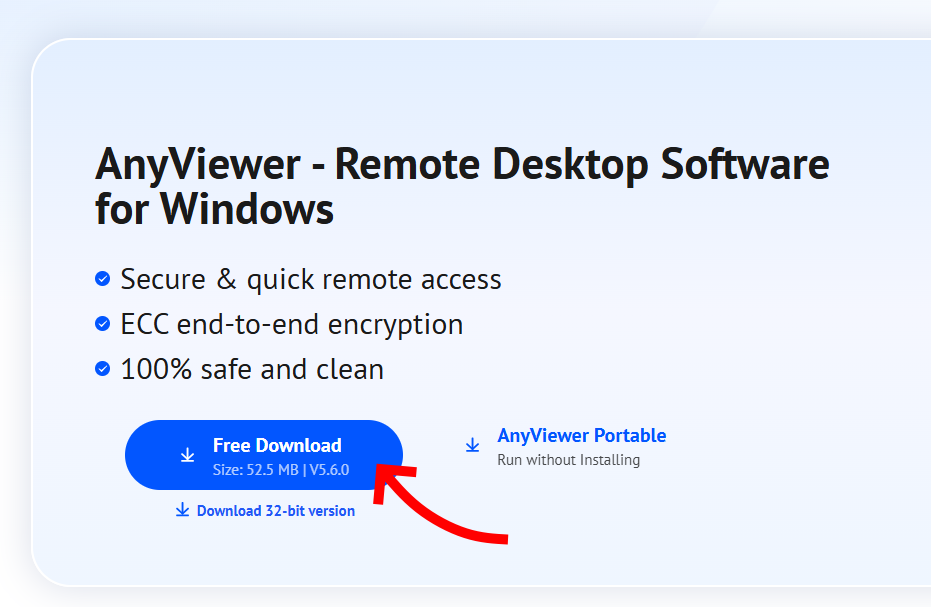
Step 1. Download AnyViewer from the official website at www.anyviewer.com/download.html.
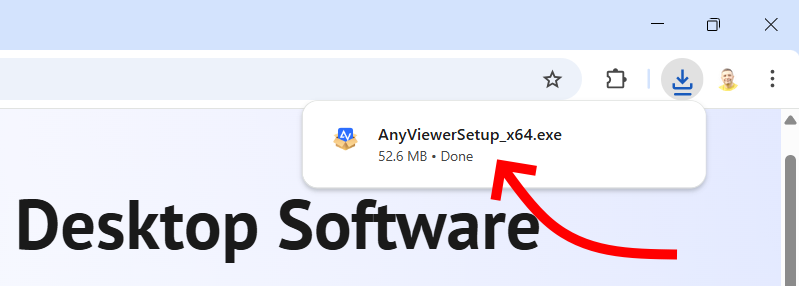
Step 2. Open the downloaded AnyViewer setup file.
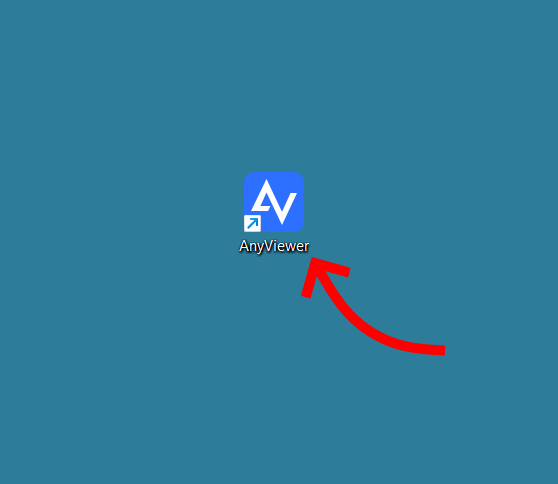
Step 3. Install AnyViewer on your computer. Step 4. Run AnyViewer.
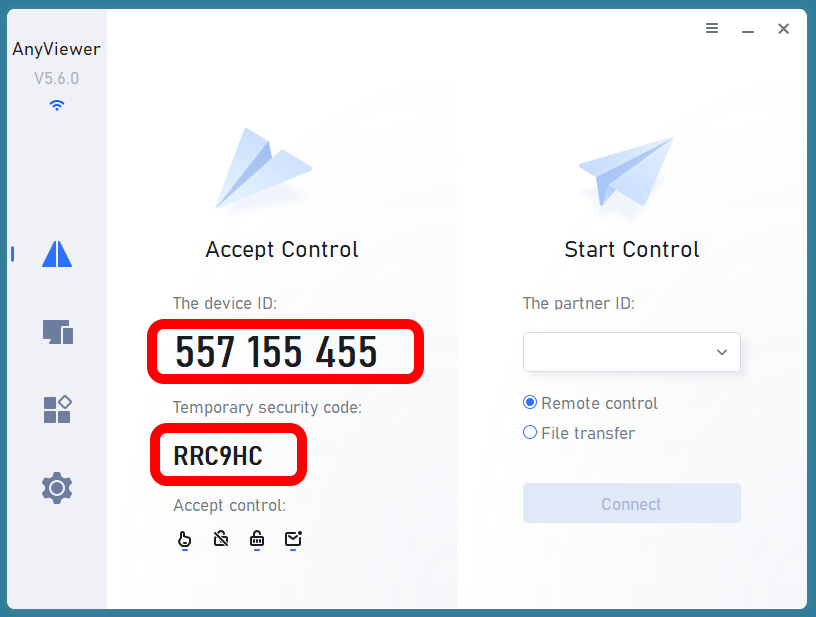
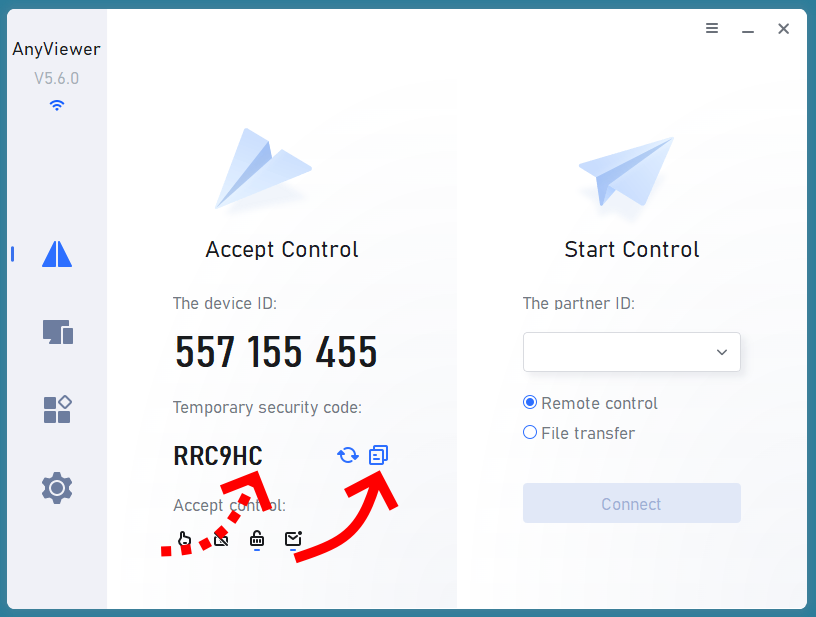
Step 5. On the main screen, you will see your Device ID and a temporary Security Code.
Copy this data. To copy Device ID and Security Code, move the mouse pointer over the Security Code field. A copy icon will appear on the right. Click it to copy the access data.
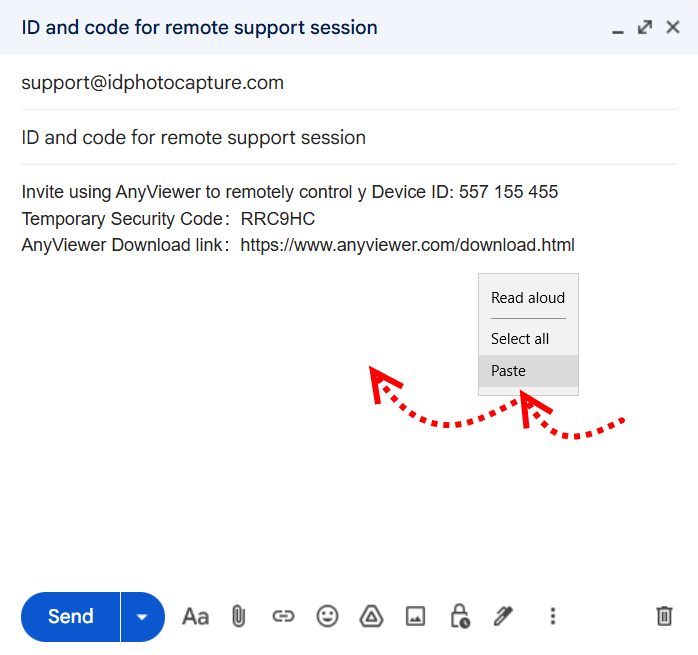
Then paste them into the message and send to our support. Please send the data in the same way which you contacted us when you set this support session. If you used email, please send the message to support@idphotocapture.com.
Done! Now everything is ready to set up the remote connection.
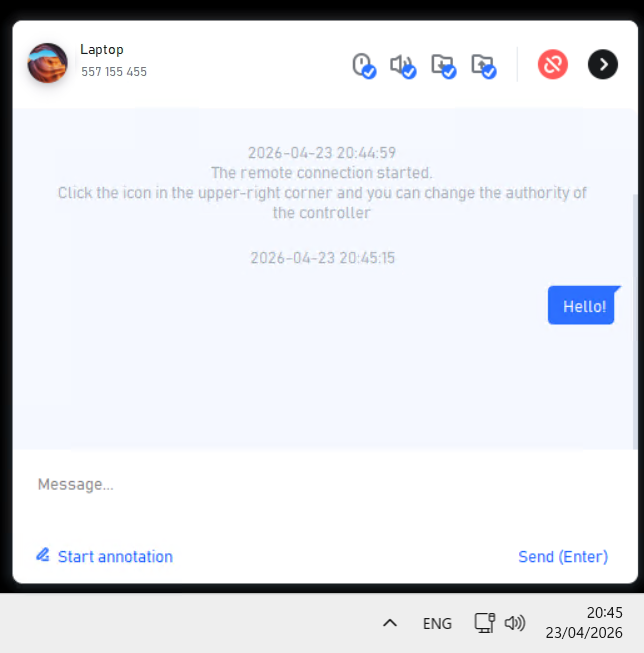
Start of remote session When our support engineer has connected to your computer a pop-up message will appear in the lower right corner of the screen.
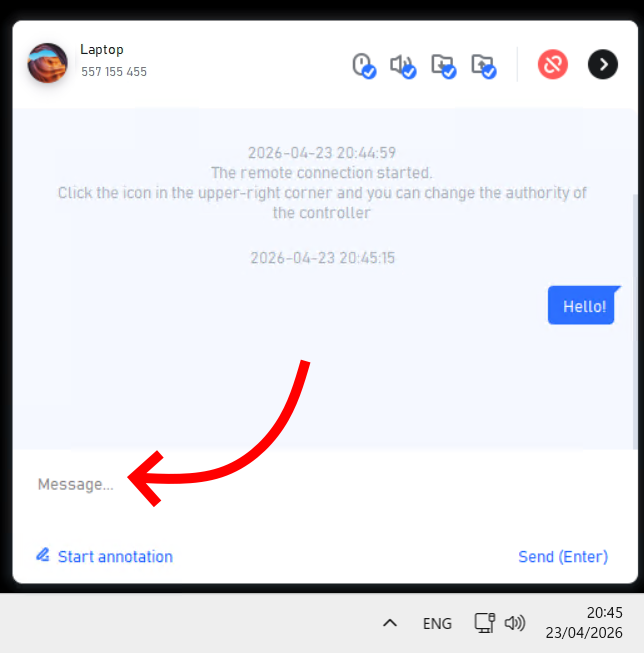
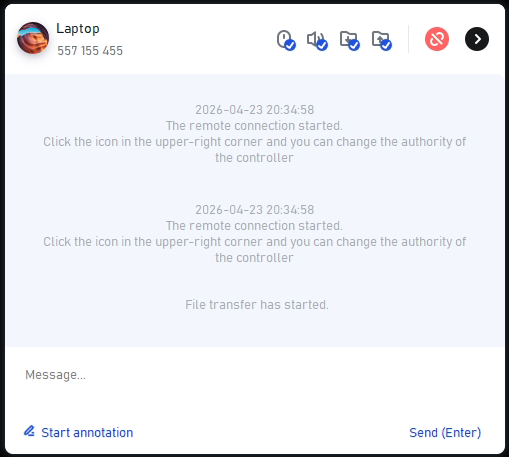
Text chat During the remote session you can keep in touch with us via a text chat.
Please keep the chat window open until the session is finished.
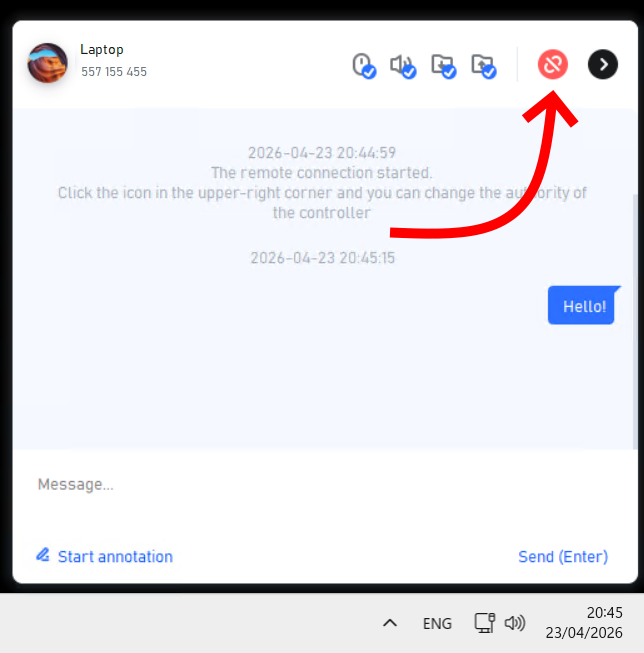
End of remote session To end the remote session, simply close the AnyViewer session window or disconnect the connection.
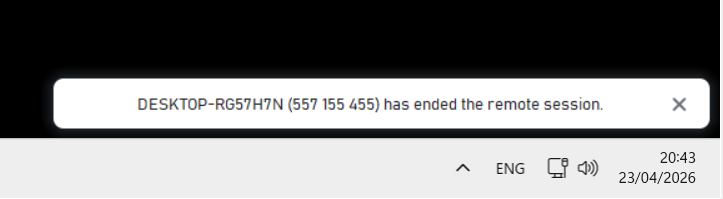
If the remote session is ended by us you will see a pop-up message as shown bellow.
|