To specify a background with partial transparency, you need to use RGBA (not RGB) or HEX color formats, which have a 4th value added - the degree of transparency.
In RGBA, transparency is specified by a number from 0 (transparent) to 1 (opaque): 0 corresponds to 0%, 0.5 - 50%, 0.8 - 80%, 1 - 100%. For example, in the color rgba(230,230,230,230,0.5) the transparency value is 0.5.
In HEX format, transparency is expressed using hexadecimal numbers. For instance, in the color code #E6E6E6E680, the 80 at the end represents the transparency level, which indicates 50% transparency.
Transparency codes for hexadecimal format are presented at the end of the document.
As previously mentioned, to achieve backgrounds with transparency, processed files should be created in PNG or TIFF formats.
An example with the original file in PNG format:
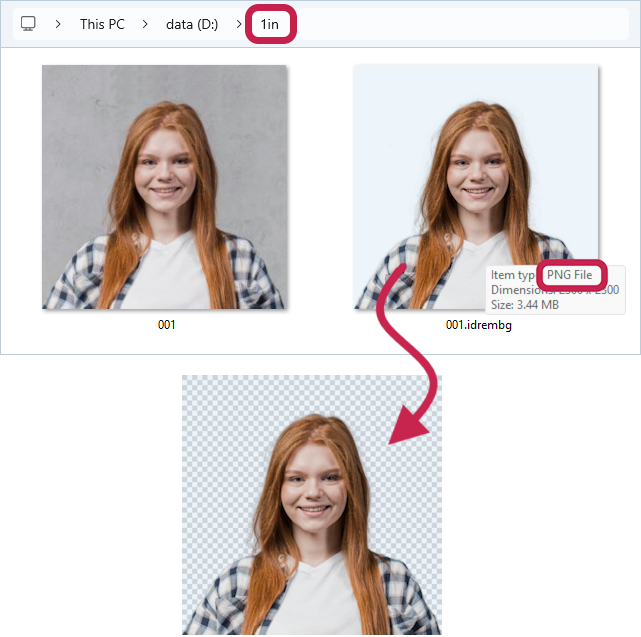
Let's process the original file in PNG format - 001.png and create a output file with a semi-transparent light blue background.
We will set the partial transparent background using the key -b with the value rgba(230,230,230,230,0.5) - in the first case and #E6E6E680 - in the second case.
RGBA (transparency value - 0.5 corresponds to 50%)
>idrembg -i "D:\1in\001.png" -b rgba(230,230,230,0.5) |
HEX (transparency value - 80 corresponds to 50%)
>idrembg -i "D:\1in\001.png" -b #E6E6E680 |
As a result,a PNG file 001.idrembg.png with a semi-transparent light blue background will be created in the D:\1in folder.
An example with the original file in JPEG format:
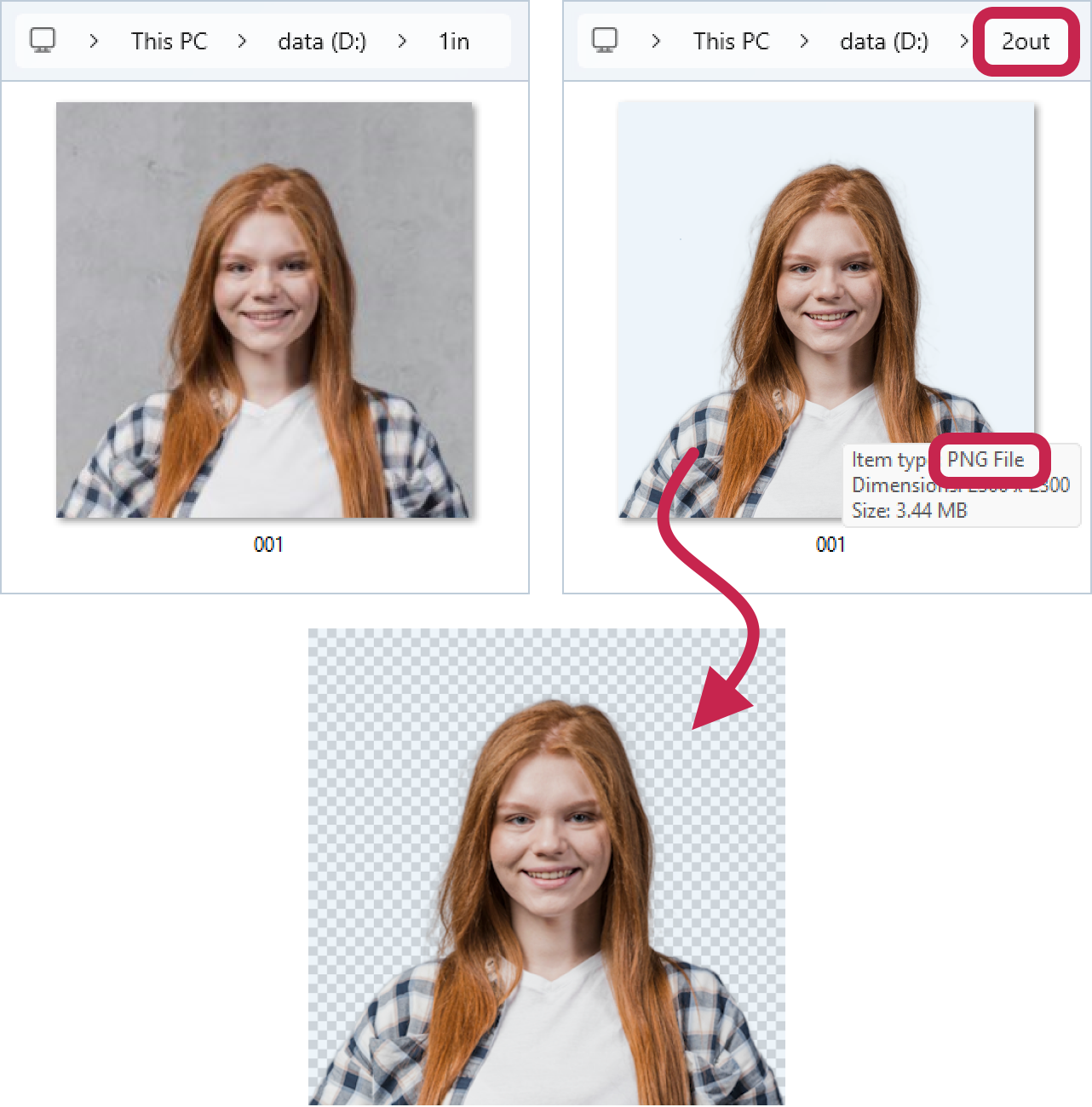
Let's process the original file 001.jpg and create a output file with a semi-transparent light blue background.
The partial transparent background is set using the -b key with the value rgba(230, 230, 230, 0.5) in the first instance and #E6E6E680 in the second, using the same values as in the previous example.
Because the source file, 001.jpg, is in JPEG format, which does not support transparency, it is necessary to specify the output format as PNG when processing. To achieve this, include the -o key.
RGBA (transparency value - 0.5 corresponds to 50%)
>idrembg -i "D:\1in\001.jpg" -o "D:\2out\001.png" -b rgba(230,230,230,0.5) |
HEX (transparency value - 80 corresponds to 50%)
>idrembg -i "D:\1in\001.jpg" -o "D:\2out\001.png" -b #E6E6E680 |
As a result, a PNG file 001.png with a semi-transparent light blue background will be created in the D:\2out folder.