Files with the .idrembg suffix are overwritten automatically by the application.
In other cases, use the --overwrite key.
Example:
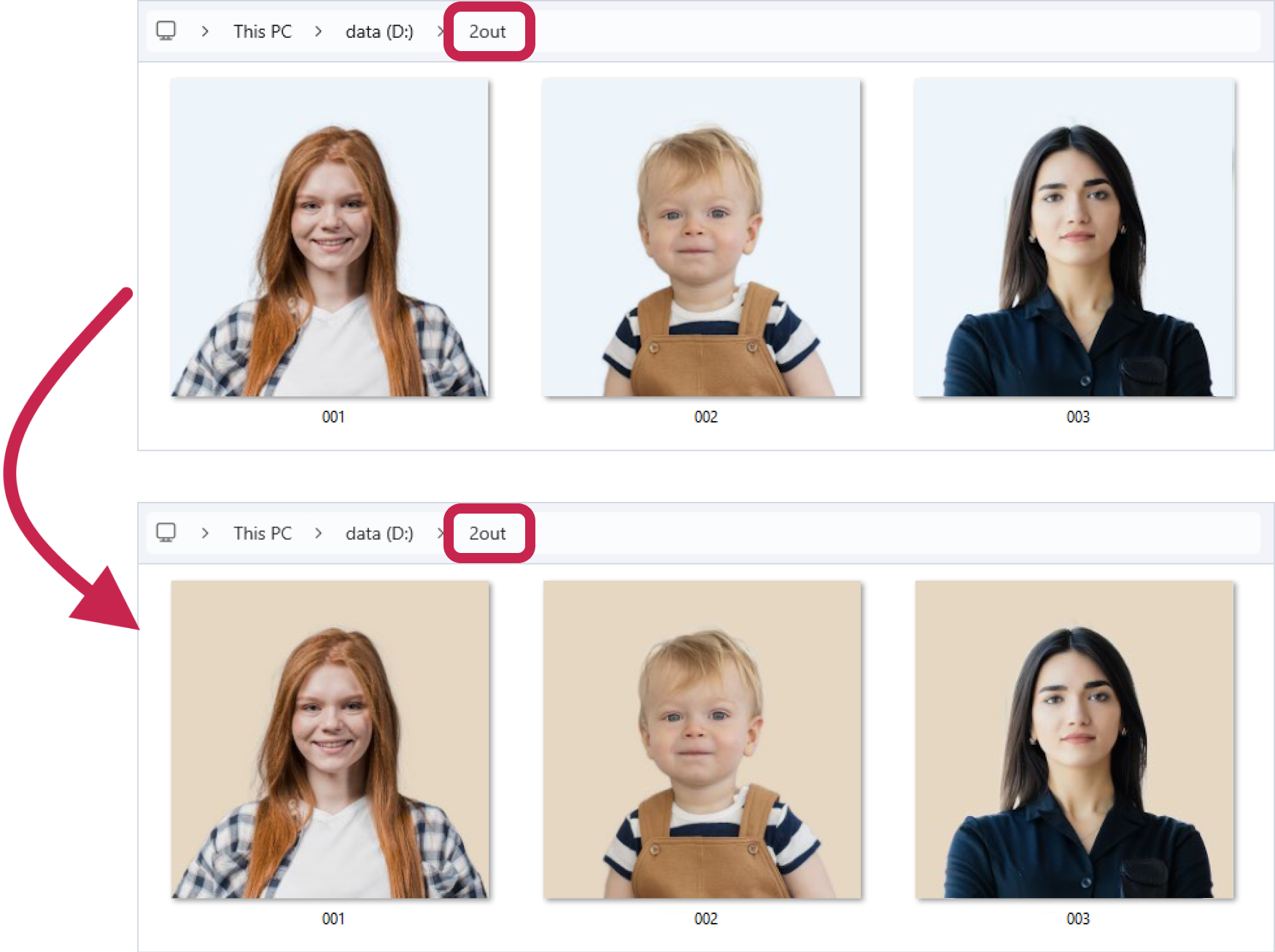
After processing the files in the D:\1in folder, we saved them to the D:\2out folder. The D:\2out folder now contains the processed files, which have a light grey background: 001.jpg, 002.jpg, and 003.jpg.
Then we needed to process the files in the D:\1in folder again, but with a different background color (white) and the previously processed files are no longer needed. To make the application overwrite the files in the D:\2out folder, apply the --overwrite key.
>idrembg --in-dir "D:\1in" --out-dir "D:\2out" -b rgb(230,215,195) --overwrite |
As a result, the processed files will be saved to the D:\2out folder, and any existing files with the same name will be overwritten. In our example, all files in the D:\2out folder have been overwritten.
As shown in the screenshot, the processed images originally with a light blue background have been replaced with those featuring a sandy background.
|
Be careful when using --in-dir and --overwrite together without --out-dir, as this will overwrite the source files! Only use this combination if you are sure you will not need the source files in the future. |

Example:
>idrembg ––in-dir "D:\1in" --overwrite |
As a result of running this command, the application will process the D:\1in folder and write the processed files to it instead of the original files. The original images will be overwritten without the possibility of restoring them!